
If you are moving from Google Workspace to Microsoft 365 for better file organization and a smoother daily work, you will have to transfer your Google Drive files to OneDrive. Tools like Google Takeout and Microsoft Migration Manager can get the job done, but they aren’t always ideal. Transfers often drag on slowly, there are file limits to watch for, and getting everything set up can feel confusing. Using a fully automated migration tool helps cut through that hassle.
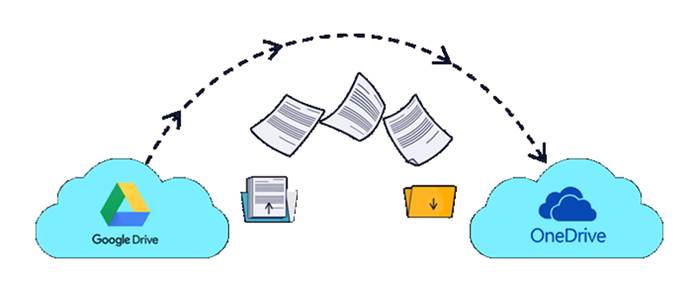
Why Use Automatic Migration Instead of Manual Transfer?
If you have only a small amount of data to move and lots of free time, Google Takeout might be fine. Microsoft Migration Manager is a good choice for IT admins and large organizations that use Microsoft services.
However, neither choice works well for everyday users working with large data volumes. Automated migration tools reduce long waiting times, because tasks can be executed whenever you schedule them. This spares you from having to transfer your files from Google Drive to OneDrive.
| Method | Best For | Pros | Cons |
| Google Takeout | Personal users with small data (<15GB) | Free | Extremely slow, requires manual intervention, risk of data loss |
| Microsoft Migration Manager | Large enterprises (G Suite to Office 365) | Microsoft-supported, designed for big data | Complex setup, primarily for IT admins, limited to business accounts |
| MultCloud (Automatic Migration) | All users, from individuals to SMBs | Automated, fast, user-friendly, supports scheduling, secure, free version | May incur cost for data volumes beyond free tier (e.g., >5GB) |
How to Migrate Google Drive to OneDrive Automatically with MultCloud
As a multi-cloud management platform, MultCloud lets you handle files from all your cloud drives in one place. You can transfer, sync, migrate and back up files between different cloud services freely. It also supports custom transfer settings, email notifications, file filters and scheduled tasks to match your actual needs. And best of all, your files don’t lose their original folder structure after the transfer is complete, saving you hours of work sorting them manually later on.
Now, you can automatically migrate google drive to OneDrive by following the steps that follow.
Step 1. Create an Account
Visit the official MultCloud website to sign up for an account and log in.
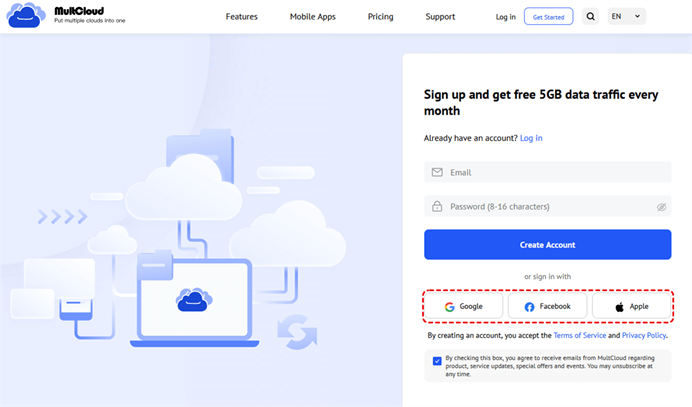
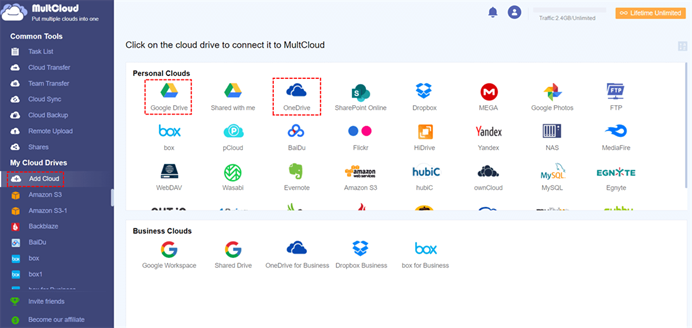
Step 2. Add Google Drive and OneDrive
Click “Add Clouds and Emails” on the left sidebar, select Google Drive and OneDrive, then complete the authorization to connect both services to MultCloud.
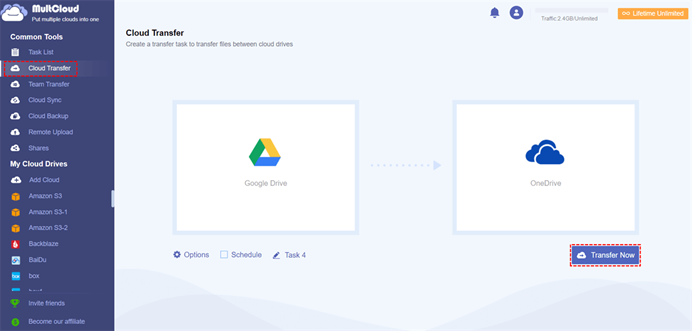
Step 3. Create a Migration Task
Open “Cloud Transfer”, set Google Drive as the source storage and OneDrive as the destination drive.
Step 4. Configure Automatic Migration
For a one-time migration task: head to “Schedule”, choose “Once” under “Frequency”, pick your preferred start time, and save the configurations.
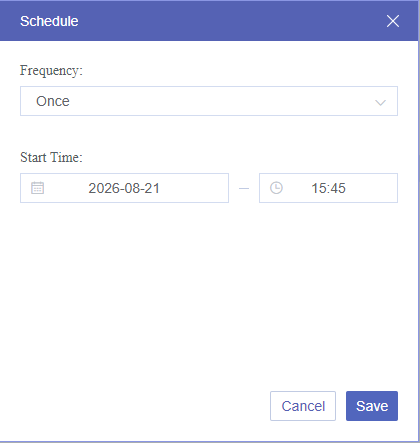
For recurring scheduled migrations: go to “Schedule”, select your desired frequency (daily, weekly or monthly), set the run time you want, then click “Save”.
Step 5. Migrate Now
Click “Transfer Now” to start the process.
Summary
With what you’ve learned here, you can set up an automated task to move files from Google Drive to OneDrive — and then head off to rest while it runs. MultCloud isn’t just built for moving Google Drive files over to OneDrive. You can also use it to transfer Google Drive to another account, create cloud backups, and even migrate emails between different mail platforms.
Head over to MultCloud’s official site right now to sign up for an account and test out seamless cross-cloud migration for yourself.
Leave a Reply